Showing posts with label micromax. Show all posts
Showing posts with label micromax. Show all posts
Sunday, April 5, 2015
How To Root Micromax A250 Canvas Turbo Without PC
Micromax A250 Canvas Turbo is the latest flagship of Micromax. The device is supercharged and is having mind-blowing features and is better than all the other Indian Android Devices because of its RAM and Processor. The device was released in late October (Oct 31, 2013) and it became very popular because of its RAM.
The device is having 5 inch Capacitive touchscreen with 16M colors and IPS FHD CGS display. The display size of Canvas Turbo is 1080 x 1920p. It is dual SIM device which supports dual SIM standby too. The device is powered with Quad Core MediaTek MT6589T Chipset which is clocked to 1.5 GHz means 1.5 GHz Quad Core MediaTek MT6589T. The processor is cool and great but the RAM is also not less! Yeah! it is not 512 MB, not even 1 GB. Canvas turbo is provided with 2 GB RAM which is damn big, I mean if you are even a hardcore gamer, still the RAM will be free I can guaranty. The GPU of this device is okay, I mean not too good and not too bad. The device is having PowerVR SGX 544MP GPU which is clocked at 357MHz. I think you can play any game in this device. There is a 16 GB Internal Memory for your files and allwhich can be further expanded up to 32 GB via SD Card which cannot be expanded! The OS provided with the device is latest Android 4.2.1 Jelly Bean OS, huh Micromax! Its your second or third device having Android 4.2 Jelly Bean, there is also a Jelly Bean 4.3 update, you know Micromax? Anyway, Micromax said that they will provide and update for this device. The device features 13 Mega Pixels camera LED Flash, 360 degree Panorama, Auto Focus etc. and a 5 Mega Pixels front camera which is good. You can record videos @1080p HD Resolution. It has 3G, Bluetooth, USB port, Wi-Fi etc.
Features highlight of Micromax A250 Canvas 5 Turbo:
The device is having 5 inch Capacitive touchscreen with 16M colors and IPS FHD CGS display. The display size of Canvas Turbo is 1080 x 1920p. It is dual SIM device which supports dual SIM standby too. The device is powered with Quad Core MediaTek MT6589T Chipset which is clocked to 1.5 GHz means 1.5 GHz Quad Core MediaTek MT6589T. The processor is cool and great but the RAM is also not less! Yeah! it is not 512 MB, not even 1 GB. Canvas turbo is provided with 2 GB RAM which is damn big, I mean if you are even a hardcore gamer, still the RAM will be free I can guaranty. The GPU of this device is okay, I mean not too good and not too bad. The device is having PowerVR SGX 544MP GPU which is clocked at 357MHz. I think you can play any game in this device. There is a 16 GB Internal Memory for your files and all
 |
| Credits goes to GSMArena |
Features highlight of Micromax A250 Canvas 5 Turbo:
- 5 inch Capacitive touchscreen with 16M colors and IPS FHD CGS Display having 1080x1920 pixels resolution
- 1.5 GHz Quad Core MediaTek MT6589T Chipset
- 2 GB RAM and 16 GB ROM
- PowerVR SGX 544MP GPU
- Android 4.2.1 Jelly Bean OS
- 13 MP Camera and 5 MP front Camera
- 2000 mAh Battery backup
The specifications of the device is great but still it doesnt have many ROMs when it compared with even low cost Android devices, this is because of the high price!
Prerequisites
- Micromax A250 Charged up to 70%
- USB Debugging Enabled
[Open Settings of your Android and scroll to the end & select About Phone. Find at tap 7 times continuously on Build Number. There will be another option Developer Options when you will go back to settings. Open it and enable it. Now enable USB Debugging too]
Downloads
- Framaroot 1.6.0 APK- Click HERE.
How To Root Micromax A250 Canvas Turbo
- Download the application and move it to your Internal SD Card by USB data cable or download it from your phone directly.
- Install the application by tapping on it [from any file manager, say ES File Manager]. [If you are doing if first time then you will see a popup which will be having Unknown Sources warning. Tap Yes there and enable the checkbox of Unknown Sources]
- Open the Frmaroot application from your application drawer.
- Select Super SU from the drop down menu and click on Boromir.
- You will see a successful message with Success :-) ... Superuser and su binary installed. You have to reboot your device message in it.
- Reboot your device :)
Youre rooted now! Yeah! If you saw Super SU application installed in your Application Drawer, then it means youre rooted. If you are not sure, then download Root Checker and check from it! You can shoot out a comment here if you are confused in any step!
See a simple video made by me on Rooting Micromax A250 Canvas Turbo on YouTube:
See a simple video made by me on Rooting Micromax A250 Canvas Turbo on YouTube:

Saturday, April 4, 2015
Android 4 4 KitKat for Micromax Android Devices Expectation
Google recently announced their latest Operating System- The KitKat OS. The OS has got many updates like more faster, the UI has improved, faster app processing etc. It was launched with Googles latest flagship Google Nexus 5! There are many reasons that makes Android 4.4 KitKat a cooler Operating System. By cooler I didnt mean its not warm! I mean it is better and attractive. The Jelly Bean series, 4.1 JB, 4.2 JB, 4.3 JB are having almost same features and there are almost no update in UI of 4.2 JB and 4.3. Okay so lets talk about some features of Android 4.4 KitKat. You know Im more excited than you!

Android 4.4 KitKat OS Features
Android 4.4 KitKat OS Features
- In-built Screenshot option
- In-built Screen recorder option
- New and better Launcher
- Updated Google Now with more features
- New animation added (finally they added!)
- Replaced Stock boring browser with Chrome
- No more lags!
- Optimized for Low-End Android Devices
- Boring SMS Application replaced with Hangouts 2
- Smart Caller ID
- More accurate
- Faster Application processing
- More emojis added
The OS is released just now, thats why you cannot see KK in every device. Developers are trying to port it to some devices like Samsung, HTC, LG and other popular manufacturerss devices and there are very less scopes for Micromax, Karbonn, Lava, XOLO etc. to get KitKat update by developers because it needs to be get to their clones first, then only we can think.
When will Micromax integrate KitKat Operating System in their Mobiles?
Micromax phones are getting popular day after date because of their price and features. Mostly all the devices are MediaTek based thats why they are cheap. Also, very less MediaTek devices has got Android 4.4 KitKat update because MediaTek is lazy or they are not in planning to release 4.3 JB because it has nothing special! I dont think Micromax will integrate KitKat OS in their device until mid 2014 because they are not even releasing 4.3 Jelly Bean update for their 4.1/4.2 Jelly Bean devices.
Expected Micromax Android Devices that may receive KitKat update
- Micromax A250 Canvas Turbo [Sure!]
- Micromax A240 Doodle 2 [Sure!]
- Micromax A210 Canvas 4 [90% chances]
- Micromax A117 Canvas Magnus [80% chances]
- Micromax A113 Canvas Ego [80%]
I dont know even they will get an update or not. This is no official news about it so we cannot say that they will get the update or not. But Im sure Canvas Turbo will get the update because its their latest flagship!
Expected Micromax Android Devices that may receive KitKat update by Custom ROM
- Micromax A116 Canvas HD
- Micromax A115 Canvas 3D
- Micromax A110Q Canvas 2 Plus
As I said there is no official news about it, so I cant guaranty you about this article. We dont know they exact date of release or anything like that. And also there is no news from MMXNewscaster@Twitter. I think that theyll get the update. But there is everything in the hands on Micromax!
After seeing the growth and the popularity of Micromax in Indian market, I think they will soon make devices with Android 4.4 only.
Micromax Dual Boot LapTab Laptop Tablet boots with Android and Windows 8 1!
Micromax will soon launch their first laptop, not actually laptop but a LapTab because it has features of both Laptop and Tablet so its name is LapTab. The names seem to be cool but will the device be cool or crappy? According to a report by Engadget, Micromoax will launch their LapTab soon [Click HERE to go to Engadget.] at CES. It will be launched in Canvas series [like Micromax Canvas HD, Canvas Turbo, Canvas 2 etc.]
This LapTab will be booting with Android 4.x Jelly Bean and Microsoft windows 8.1. We think there will be Android 4.1 or 4.2 in this LapTab because we have never seen any Micromax device which has got Android 4.3 Jelly Bean or 4.4 Kit Kat updates.
The Micromax Dual Boot LapTab boasts a 10.1 inch big screen with 1280x800 resolution, huh! 10.1 inches, who can carry it? But because it is Laptop too, then it is less size but overall, it is good but difficult to carry in hands. You need a bag to carry the device.
The device is clocked at 1.4 GHz processor. Theres no rumour that the device is Dual-Core or Quad-Core but I think it will be Quad-Core device because it is a Laptop and it is 1.4 GHz so Quad-Core processor would suit a device with 1.4 GHz with Microsoft Windows 8.1. Crappy thing of this device is that, the internal storage is just 32 GB (hahaha!). Can you even make this device as your Laptop (Windows 8.1)? No. but when we see it as a tablet then it is too much. There will be 2 GB RAM provided with this device which is too much for a TabLet (Android Jelly Bean) but too less for Laptop (I mean Windows 8.1).
It is boosted with 1.4 GHz Intel N2805 Celeron processor which is damn slow for Microsoft Windows 8 and okay for Android 4.1 Jelly Bean. It weights 580 grams, which is heavy for a Tablet but a leaf for Laptop. Theres a light sensor in this device, Bluetooth 4.0 (will consume less battery and faster processing), WiFi and a 2 Mega Pixels front camera (dont expect rear camera!) Therea also a wireless keyboard but you will be required to purchase it additionally after buying it.
Users will be able too any OS, Android Jelly Bean or Microsoft Windows 8.1. Here are rankings by me on this device:
As a Laptop:
2/5
As a Tablet:
4.5/5
Combined [LapTab]:
3.5/5
Now it is on you to buy this device or not. The pricing has not meant decided yet.


Heres a video made by me on this LapTab that contains reasons why to buy it or why not to buy it..!
If you want to give your reviews on this Android cum Windows device hen you are quite welcome! Just comment here on this article.
This LapTab will be booting with Android 4.x Jelly Bean and Microsoft windows 8.1. We think there will be Android 4.1 or 4.2 in this LapTab because we have never seen any Micromax device which has got Android 4.3 Jelly Bean or 4.4 Kit Kat updates.
The Micromax Dual Boot LapTab boasts a 10.1 inch big screen with 1280x800 resolution, huh! 10.1 inches, who can carry it? But because it is Laptop too, then it is less size but overall, it is good but difficult to carry in hands. You need a bag to carry the device.
The device is clocked at 1.4 GHz processor. Theres no rumour that the device is Dual-Core or Quad-Core but I think it will be Quad-Core device because it is a Laptop and it is 1.4 GHz so Quad-Core processor would suit a device with 1.4 GHz with Microsoft Windows 8.1. Crappy thing of this device is that, the internal storage is just 32 GB (hahaha!). Can you even make this device as your Laptop (Windows 8.1)? No. but when we see it as a tablet then it is too much. There will be 2 GB RAM provided with this device which is too much for a TabLet (Android Jelly Bean) but too less for Laptop (I mean Windows 8.1).
It is boosted with 1.4 GHz Intel N2805 Celeron processor which is damn slow for Microsoft Windows 8 and okay for Android 4.1 Jelly Bean. It weights 580 grams, which is heavy for a Tablet but a leaf for Laptop. Theres a light sensor in this device, Bluetooth 4.0 (will consume less battery and faster processing), WiFi and a 2 Mega Pixels front camera (dont expect rear camera!) Therea also a wireless keyboard but you will be required to purchase it additionally after buying it.
Users will be able too any OS, Android Jelly Bean or Microsoft Windows 8.1. Here are rankings by me on this device:
As a Laptop:
2/5
As a Tablet:
4.5/5
Combined [LapTab]:
3.5/5
Now it is on you to buy this device or not. The pricing has not meant decided yet.
Some pictures of this device:
Heres a video made by me on this LapTab that contains reasons why to buy it or why not to buy it..!
If you want to give your reviews on this Android cum Windows device hen you are quite welcome! Just comment here on this article.
Friday, April 3, 2015
Micromax A350 leaked Octa Core 2 GHz and Much More!
Micromax A350 will release soon in the Indian market but I must tell you that it will be the best Indian Android mobile phone because its features. The device is not Single Core, not dual core, not even quad-core, Micromax A350 is octa core!!
Great news na? I hope you found it interesting. Now let us see some of the features of this device.
Micromax A350 is supposed to be a 5 inch device with IPS display and full HD display and 1920x1080 pixels resolution. The screen might not be improved because even Micromax A250 Canvas Turbo was 5 inch display, anyway, its just a rumor but I myself think that the device will be 5.5 inch but Micromax wont exceed the size of their devices because who needs a mobile phone with more than 5 inch of HD display? It will be dual-sIM device which will be dual-standby. Micromax A350 will be powered with MediaTek MT6592 and you know what, the chipset even beats Qualcomm SnapDragon 800. With the power of octa core, mulitasking becomes more smooth, more easier and the games will run like butter. MMX A350 will be clocked @2 GHz (Octa-Core) because the chipset is normally clocked at 2 GHz only, if not 2 GHz then we are sure that it will be running on 1.8 Ghz. Micromax A350 will be having 2 GB RAM because theres no chipset which can handle more than 2 GB RAM in Android (SAMSUNG HAS MADE A CHIPSET WHICH CAN HANDLE 4 GB RAM AND IT RUNS ON 64 BIT ENVIRONMENT, AND THAT CHIPSET WILL BE ADDED IN SAMSUNG GALAXY S6.) Currently, we have no news of the GPU of this device but it will be PowerVR. Also, with this chipset, you get 60 FPS video recording!!!! Oh, I forgot to refer to the camera of this device. The device will be having 16-18 MP camera and the front camera would be 5-8 Mega Pixels. There are tons of features in camera which MediaTeks SoC provides like MediaTek Clear Motion, 60 FPS recording, and tons of other features which are not revealed by MediaTek till now. Micromax A350 will even beat Samsung Galaxy S4 ~ what the rumors say. I dont belive that Micromax A350 can ever beat Samsung S4 because of Samsungs hardware. Samsungs hardware are premium and thats why their devices are too costly whereas Micromax uses MediaTek chipset which is not very expensive and thats the reason why you get even Quad Core devices at 7 thousands...! The battery of Micromax A350 is improved and I am impressed to see this. You will find 2800 mAh battery inside Mircomax A350. Thats amazing @Micromax, I mean the battery. You will get WiFi, 2G, 3G, Bluetooth, GPS and other features that most of the Android devices have.
Micromax A350 Specifications
Great news na? I hope you found it interesting. Now let us see some of the features of this device.
 |
| Credits for the image goes to GizBot |
Micromax A350 Specifications
- 5 Inch HD IPS Display with 1920 x 1080p resolution
- Dual-SIM Support (Dual-Standby)
- MediatTek MT6592 Chipset Cortex-A7 clocked @1.8 GHz or 2 GHz
- 16-18 Mega Pixels camera and 5-8 Mega Pixels front camera
- 2 GB RAM and 32 GB ROM
- 2800 mAh battery backup
- Wi-Fi, 2G, 3G
Price
Micromax A350 will be priced not more than 21 thousands because it will exceed the budget of a normal person and Micromax usually released their handsets with decent price amount which is moderate range.
You can watch a video made by me on YouTube which will show you all the rumors, specifications and reviews for Micromax A350.
Thursday, April 2, 2015
Micromax A200 Leaked but What is special Micromax
We will discuss Micromax A200 Specifications, features, price and other details. Get ready and here you go:
Dear Micromax, we are again disappointed with you. You again releasing a device with that 1.3 GHz Quad Core processor? Let us know why one wouldnt buy Canvas HD instead of Canvas 4? Huh!? He can get most of the features at the same price. And what about Magnus?, Ego? I think they are almost same, but with some changes or are you planning to release devices in variants like Samsung and other manufacturers? Anyway I wont talk much of your devices, but of your NEW [leaked] Device: Micromax A200 CanvasANYTHING. We dont know any name of this device [like Ego, Magnus and all] and I wont lie to you too.
There is no official news about this device, and what you will be seeing today will be rumours and other details that we have got from benchmarking applications and other sources. Let us see some details of Micromax A200.
Also, there is no proof of the real picture of this device so I wont upload any fake pictures about this device.
The device is having abig common 4.7 inch capacitive touchscreen with an HD display. You get 1280x720p HD resolution with this device, and thats finally something good. Also, the device is protected with Gorilla glass 2 protection on the top of it. You might know Canvas 2.2 which is recently released device? If you dont know then let me tell you that the A200 is also having the identical chipset as of 2.2: MediaTek MT6582 Quad Core Processor which is clocked @1.3 GHz. This is a nice processor, but I think you can get hundreds of devices with this chipset. Also, the RAM is common, which is 1 GB. I know you are expecting Kit Kat with this device because it is more than month after its release but sorry, it is Micromax and not Samsung! The device will boot with Android 4.2 Jelly Bean OS and not even with Android 4.3 Jelly Bean, thats why I hate Indian mobile manufacturers. The device will capture pictures with it clear 8 Mega Pixels camera and also with its front camera which is of 5 Mega Pixels. Yeah, it has Auto-focus, Panorama, Facial editing and all. The battery of this device is not good, just 1800 mAh battery and that is quiet less. I mean 2000 mAh or more battery would be better for gamers and normal users. For the people who want a good battery backup, they can go with Micromax A77 Canvas Juice. You will get 4 GB of internal storage with this device [2GB for internal SD Card, 1 GB for application and 2 GB for the Operating System]. Extra things like 2G, 3G, 4G, Wi-Fi 802.11 b/g/n, Bluetooth with A2DP and GPS will be available in this handset. For listening music and FM, you get a 3.5 mm audio jack. It is 7.9 thick. Finally about the battery, the battery will be of 1800 mAh Li-Polymer.
We consider that the device will be available in stores till January 2014.
Micromax A200 Specifications:
Dear Micromax, we are again disappointed with you. You again releasing a device with that 1.3 GHz Quad Core processor? Let us know why one wouldnt buy Canvas HD instead of Canvas 4? Huh!? He can get most of the features at the same price. And what about Magnus?, Ego? I think they are almost same, but with some changes or are you planning to release devices in variants like Samsung and other manufacturers? Anyway I wont talk much of your devices, but of your NEW [leaked] Device: Micromax A200 Canvas
There is no official news about this device, and what you will be seeing today will be rumours and other details that we have got from benchmarking applications and other sources. Let us see some details of Micromax A200.
Also, there is no proof of the real picture of this device so I wont upload any fake pictures about this device.
The device is having a
We consider that the device will be available in stores till January 2014.
Micromax A200 Specifications:
- 4.7 inch HD display with 1280x720 pixels resolution [720p HD]
- Screen protected with Gorilla Corning 2
- Android 4.2 Jelly Bean OS [Interesting, you know!]
- 1.3 GHz Quad Core is powered with MT6582 Chipset
- 1 GB RAM and 4 GB ROM
- 8 Mega Pixels rear camera with Auto-Focus, Panorama and other Android 4.2 features and 5 Mega Pixels front camera
- 3G, Wi-Fi 802.11 b/g/n, Bluetooth with A2DP and GPS
- 3.5 mm audio jack and 7.9 mm thickness
- 1800 mAh Li-Polymer Battery
It is expected that you will get this device @18 thousands.
As I said the device is supposed to be launched in January 2014, so have some patience and wait for the device. I hope you liked the specifications, but I must tell you that YOU CAN GET THESE SPECIFICATIONS AT LOW COST [from other manufactures] at inexpensive rates.
See a YouTube video made by me of this device:
As I said the device is supposed to be launched in January 2014, so have some patience and wait for the device. I hope you liked the specifications, but I must tell you that YOU CAN GET THESE SPECIFICATIONS AT LOW COST [from other manufactures] at inexpensive rates.
See a YouTube video made by me of this device:
Source: Twitter @MMXNEWSCASTER.
Thursday, September 25, 2014
How to hard or soft unbrick Micromax A27 and Micromax A35
My friend broke his Micromax A27. He flashed a wrong ROM in Micromax A27 and I knew that opening recovery console of Micromax A27 will take much of hours (because I need to try every combination) because currently no one is successful in opening recovery console of Micromax A27. What was good, was that he made a Nandroid backup. So I was thinking how to unbrick it, I thought for 5 minutes and fixed his device. This is because of fastboot mode. Also, it was speadtrum device and I dont have much experience in speadtrum devices so it was just a challenge for me that how to unbrick Micromax A27. Firstly, it takes 20-30 seconds to boot in Fastboot mode and I always felt that this was a wrong combination (but it was correct!) and then I try another, I tried many methods and all. I installed PDANet drivers in my computer and I was lucky that I got Fastboot working with those PDANet drivers. Both Micromax A27 and Micromax A35 are the same devices (because the same chipset) and trust me, it will work on both the devices, I guarantee you this.
Finally I fixed the problem by flashing system partition via USB cable through Fastboot. Lets no more talk about my experience and move to our main piece of this article: How To (Hard or Soft) Unbrick Micromax A27 Bolt or Micromax A35.
Requirements for both the cases
Downloads


Finally I fixed the problem by flashing system partition via USB cable through Fastboot. Lets no more talk about my experience and move to our main piece of this article: How To (Hard or Soft) Unbrick Micromax A27 Bolt or Micromax A35.
Requirements for both the cases
- Bricked Micromax A27/ Micromax A35
- a ClockWorkMod for case 1 and nothing except the downloads given here.
- a USB cable for both the cases.
- Fastboot for case 1 (download link given.)
- USB Drivers, firmware, flashing tool for case 2.
- Battery charged up to 50% (for both the cases).
- a Brain!
Downloads
- Fastboot: Please Click HERE
- Nothing except your nandroid backup which you have made.
Downloads for case 2
- Micromax A27 Stock Firmware: Please Click here./ Miromax A35 Stock Firmware: Please Click HERE.
- Flashing Tools: Please Click HERE.
- USB Drivers
Note: Before or means a situation when you have a nandroid backup and after or it means a situation when you dont have a Nandroid backup.
How To Unbrick Micromax A27 or Micromax A35
Case 1
- Open the SD Card on which you made a Nandroid backup (by open I mean connect to computer via Card reader or any other mobile.)
- Go to Clockworkmod folder and follow to backup folder.
- Please open the backup which you made of Micromax A27/ Micromax A35 and copy & paste system.yaffs2.img image to your folder.
- In that folder where you extracted the system file, extract the fastboot (link given in downloads section.)
- Now install PDANet like a normal application and when it will display phone selection then tick Others (if not sure) option.
- Accept all the warnings and when it will complete its work then click on minimize it (dont exit!!!)
- Press and hold the Volume down and Power button simultaneously for 20-30 seconds.
- When you wills see fastboot mode in the screen with red color of text then connect your USB with it.
- Hold Shift key and Right click on the folder in which you have extracted system image and fastboot.
- Click on Open command window here.
- CMD will open now, type fastboot devices.
- If you see your device or anything in this then it means that your device is connected, if list goes blank then try again.
- Type fastboot flash system system.img (system.img refers to the name of your system image, I wrote system.img because it is easy to type, if you havent changed your name of the image then replace system.img with system.yaffs2.img.)
- It will send the file and will automatically flash it..
- When it will flash completely, then type fastboot reboot in the same command prompt window.
- Done!!
Case 2
- Open DPInst.exe file to install your drivers. Let it install, and close it.
- Extract the file (firmware) and there will be .pac file which is having our firmware of Micromax A27/ Micromax A35.
- Open the tool and select the .pac file which you just extracted.
- Open the flasher and press Play/Start on the tool.
- Press and hold the Volume down button for some time (5 seconds) and insert USB in your phone (and computer too.)
- Installation of the drivers will take automatically and it will flash your system.
- Done, now reboot!
Friday, July 4, 2014
How To Install Flash ClockWorkMod CWM Recovery in Micromax A250 Canvas Turbo
Rooted your Micromax A250 Canvas Turbo? Thats cool, but what you will do with the root if you feel insecure before installing applications like Cf3D that might brick your device? For that you need to backup your device. You might be thinking why I need ClockWorkMod Recovery when I can easily backup my MediaTek device with MtkDroidTools and other tools specially made for MTK, but what will you do if your computer crashes and your hard disk gets corrupted? Just a simple solution: backup and restore your Android on Android means no need for connecting your device to computer by USB! Just backup and restore with your mobile. After restore, everything will be like that when you left your device before backup and the best part of this is, that even if your device is not booting into Android or you facing bootloop then also you can restore it easily. And when you will be backed up, then you can try anything on your device like Xposed modules, flash some MODs and other features. I know you are excited! Even I am to show this. And yeah, this is a very simple guide and even a noob can do this. So let us begin this.

Downloads
Please Click here to download CWM for Micromax A250 Canvas Turbo.
Requirements
The name of that application..
You need to download mobileuncle mtk tools application from Google Play Store in your device.

How To Flash/Install ClockWorkMod [CWM] in Mircomax A250 Canvas Turbo
Downloads
Please Click here to download CWM for Micromax A250 Canvas Turbo.
Requirements
- Google Play Store: To download a simple application.
- Micromax A250 Canvas Turbo: To flash the CWM.
- Rooted Canvas Turbo: To use that application which will flash the recovery and that requires root!
- Nothing else.
The name of that application..
You need to download mobileuncle mtk tools application from Google Play Store in your device.
How To Flash/Install ClockWorkMod [CWM] in Mircomax A250 Canvas Turbo
- Download the CWM Recovery [Link in Downloads section]
- Move that recovery to your SD Card and rename it to recovery, make sure there is .img extension after the name.
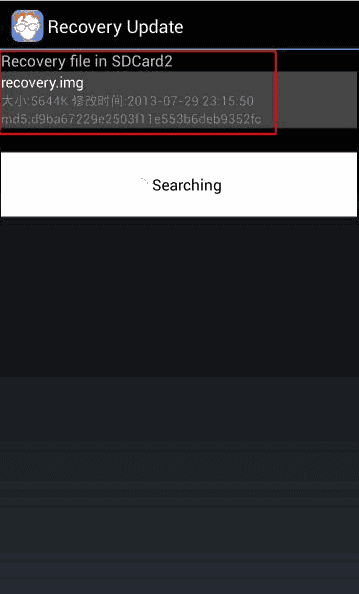
- Open the application that you just downloaded [mobileuncle MTK Tools].
- Grant root permissions to it.
- Select Update recovery from the menu.
- It will display your recovery.img soon.
- Click on it, and it will prompt to flash it or not. Click Yes.
- It will flash the recovery. After it is flashed, there will be a popup to reboot your device to recovery or not. Thats on you.
- Done!
Now, how to open the recovery console in Micromax A250 Canvas Turbo.
Press and hold Power + Volume Up/Down buttons simultaneously for some time and then you will be in Recovery mode. [First try with Volume UP, if it ends in Fastboot mode then remove the battery and then press and hold Power and Volume Down button, it will work!] Comment here which key combination worked for you to boot in Recovery console in Micromax A250 Canvas Turbo. Power button means Select, Volume Up means go up and down means go down.
Hope it helped you! :)
Saturday, June 14, 2014
ClockWorkMod CWM Recovery port for Micromax A77 Canvas Juice How To Install it
Finally after too much wait Micromax A77 Canvas Juice has got a ClockWorkMod (CWM). After being first to post rooting guide for Micromax A77 Canvas Juice we are first to post CWM Recovery for Micromax A77 Canvas Juice too! The recovery is ported by me using Rua1s tool for porting CWM Recovery. I also have ported the Carvil Touch Recovery for this device but my tester was busy and he couldnt check. The recovery is simple and does not support touch feature (if you want to use Touch Featured CWM Recovery, then download Carvil Recovery Porter and make a touch recovery for yourself. I have made that recovery too but I cannot test because of my tester. Making a Carvil Recovery is very easy. Just Open the tool, click on Auto and attach your USB (make sure ADB works) and it will automatically port a recovery for you. Wait, we are here for CWM recovery and NOT for Carvil Touch Recovery for Micromax A77 Canvas Juice.

Here are some features of ClockWorkMod Recovery:
Here are some features of ClockWorkMod Recovery:
- Backup and Restore: You can backup your currect ROM and restore afterwards, anytime. The backup is made on your own SD Card so you can restore anytime. Even the launchers icons will be there only, at their position.
- Flashing a ROM: You can flash a ROM easily by CWM Recovery because it doesnt need any signed ROM or MOD, just flash and go but NEVER FLASH A ROM NOT MEANT FOR YOUR DEVICE.
- Format Partitions: Before flashing ROMs like CyanogenMod, MiUi, LeWa OS, it is required to format the system partition, so you can easily format the partitions (BUT NEVER FORMAT ANY PARTITION UNTIL YOU ARE A EXPERIENCED USER OR HAVE ANY BACKUP)
- Mount SD Card: You can mount your SD Card while in CWM Recovery, copy, cut, paste your files from computer to SD Card or vice-versa.
Lets see Requirements, downloads and other things to flash recovery in Micromax A77 Canvas Juice.
Requirements
- Rooted Micromax A77 Canvas Juice
- Canvas Juice Juices up to 70%
- Recovery image (download link given below)
- MobileUncle MTK Tools (link given of Play Store)
Downloads
- Click HERE to download CWM Recovery for Micromax A77 Canvas Juice
- Download MobileUncle MTK Tools from Google Play Store
How To Flash/Install CWM (ClockWorkMod) Recovery in Micromax A77 Canvas Juice
- Download the recovery from your computer.
- Move the Application to your SD Card via USB or Bluetooth from your computer.
- Rename cwm_canvas_juice.img to recovery.img and push it to your INTERNAL SD CARD! (Dont push it in your external SD Card)
- Install MobileUncle MTK Tools from the Play Store and open it from your application drawer.
- Grand SuperSU or SuperUser permissions to the application.
- Click on Update Recovery option and it will collect all .img files from your SD Card.
- Now when your recovery.img will be available, just click on that. It will display a popup for flashing it or not, just click yes.
- It will flash/install the recovery in your Canvas Juice in just some seconds. After the flashing finishes, it will display a popup for rebooting device to recovery or not. Just press yes again to reboot to recovery.
- Make a Nandroid Backup (Optional)
How to reboot Micromax A77 Canvas Juice to recovery / How To open recovery console of Micromax A77 Canvas Juice
Method 1:
- Open Terminal Emulator Application.
- Type su and hit enter.
- Type reboot recovery and hit enter.
- Done!
Method 2:
- Open ADB (Android Debugging Bridge).
- Type adb shell and hit enter.
- Type su and hit enter.
- Type reboot recovery and hit enter.
- Done!
Method 3:
- Open MobileUncle MTK Tools.
- Click Reboot to recovery.
- Press Yes.
- Done!
Method 4:
- Shutdown the device.
- Press and hold the Volume down and Power button.
- It will display many options like Fastboot, recovery etc.
- Scroll down (by volume rockers) and tick recovery.
- Done!
Soon, I will post Carvil Touch Recovery for this device as well. Stay tuned! :)
Friday, May 16, 2014
How To Install Flash Carliv Touch Recovery CWM in Micromax A117 Canvas Magnus
Micromax A117 Canavs Magnus gets a CWM Recovery, oh sorry, not cwm recovery but Carliv Touch Recovery.
Carliv Touch Recovery is popular among MediaTek Android devices because it can be ported to almost any MediaTek device without any decompiling and other things. Credits goes to Carliv for making this simple tool and yuweng for his excellent work on his recovery. This is latest recovery complied by Carliv and there are all features which a recovery should have liek touch, nandroid, swipe etc. The recovery is touch based recovery so no need for touching your buttons and thats the best part of the recovery. Not only the touch feature, but you get swiping feature, touch-to-flash-rom feature, Nandroid backup, Nandroid backup deleter (in the recovery itself), backup format changer, Aroma File Explorer and other tons of special features in it. Let me show you aggregate features of Carliv Touch Recovery.

Features


.png)
.png)
Carliv Touch Recovery is popular among MediaTek Android devices because it can be ported to almost any MediaTek device without any decompiling and other things. Credits goes to Carliv for making this simple tool and yuweng for his excellent work on his recovery. This is latest recovery complied by Carliv and there are all features which a recovery should have liek touch, nandroid, swipe etc. The recovery is touch based recovery so no need for touching your buttons and thats the best part of the recovery. Not only the touch feature, but you get swiping feature, touch-to-flash-rom feature, Nandroid backup, Nandroid backup deleter (in the recovery itself), backup format changer, Aroma File Explorer and other tons of special features in it. Let me show you aggregate features of Carliv Touch Recovery.
Features
- Can be ported to any MediaTek based android device easily.
- Touch support- so no need to touch your buttons.
- Touch buttons (you can use on screen touch buttons like in ICS/JB ROMs too!)
- Change backup format- you can change the backup format like .ext4, .img etc.
- Aroma File Manager- use your SD Card, view files on your SD Card, System partition, data and all partitions, also you can delete any of them (thanks to amarullz for his fantastic work)
- Nandroid backup- backup your current ROM (system, data, boot, recovery and other partitions)
- Swiping feature- swipe up, down, left or right for moving in recovery.
- Delete Nandroid backup in recovery itself.
Requirements
- A Rooted Micromax A117 Canvas Magnus: Click HERE.
- Battery charged up to 70%.
- Simple knowledge of installing and using Android applications.
- MobileUncle MTK Tools.
Get it here:
Please note..
I am not responsible if you bricked your Canvas Magnus while performing the tutorial in this website. I hold no responsibility for it. You may make a backup by MTK Droid and tools for a safety purpose but it is tested by many users so you can also give it a shot. After flashing recovery, whatever you flash, I wont help you in that but make sure to make a Nandroid backup before flashing anything.
Downloads
- Carliv Touch Recovery image: Please click here to download carliv recovery 6.0.44 for Micromax A117 Canvas Magnus
Screenshots
Thanks Carliv for providing us the screenshots!
The recovery is based on CWM recovery so you also get features of ClockWorkMod Recovery too.
How To Install Carliv Touch Recovery in Micromax A117 Canvas Magnus
- Download the recovery.
- Rename it to recovery.img (make sure theres a .img extension with it.)
- Push it to your External SD Card of Canvas Magnus.
- Open MobileUncle MTK Tools.
- Click on Recovery update.
- It will automatically find the recovery in your SD Card.
- Click on recovery.img and it will give you a warning to flash it or not.
- Press OK.
- It will start flashing the recovery.
- When it will complete, it will display a message on reboot to recovery? Press OK. [optional]
- You will be in the recovery. Now open Backup and restore and click on backup. [optionl]
- Go back and click on Reboot system. [optional]
- DONE!
Now you are done with the recovery. Do anything with it but make sure you are backed up and do not format any partition if you dont know what does it means!! Especially preloader. You can also try many mods like Kings Booster etc. but make sure you are backed up! Have a good day and stay tuned to us.
Wednesday, April 9, 2014
How To Root Micromax Canvas Magnus A117
Weve got another MTK Android Device by Micromax! Micromax recently announced the Micromax A117 Mangus. The device belong to Canvas series so we can compare it with other Canvases. I think the device is successor of Canvas HD or any other device [Canvas 2 Plus etc.]. The Mangus is a decent device with excellent features at good price. You get MT6589T Chipset clocked at 1.5 GHz with a Quad Core processor, 5 Inch HD display with 1280x720p resolution, Android 4.2 Jelly Bean, 1 GB RAM, 4 GB Internal Storage, 12 Mega Pixels camera capable to record full HD videos and 2 Mega Pixels front camera at just 13,229 Rs. Thats quite less for a device with Quad Core processor and 1 GB RAM as compared to the devices of Karbonn, Canvas HD, Celkon, Lava Iris, XOLO etc. The device chipset is MT6589T, as same as Micromax A89, Canvas 2, Canvas Turbo etc so we can easily root it by Famaroot application.

Downloads

Downloads
- Farmaroot Application [Note-: Only 1.6.x Version will work with this device. I tried Farmaroot 1.6.2 and that worked without any errors.]
How To Root Micromax Mangus A117
- Download the Famraroot application.
- Move it to your SD card.
- Install it like other applications.
- Open the application.
- Select SuperSU and click Boromir.
- You will see a message displaying that it is now rooted.
- Reboot
You can check that if it is rooted or not by applications like Root Checker.
Dont have Canvas Magnus? The great device is cheap and also having great specifications! You can buy this device from FlipKart at cheap rate!
Micromax Canvas Magnus A117 from FlipKart at only 13.7 thousands:
Dont have Canvas Magnus? The great device is cheap and also having great specifications! You can buy this device from FlipKart at cheap rate!
Micromax Canvas Magnus A117 from FlipKart at only 13.7 thousands:
Thursday, April 3, 2014
How To Install SamFlare v2 Custom ROM in Micromax A116 Canvas HD
Earlier I posted CanvaS4 ROM for Micromax A110 Canvas 2 but this time I will show you a S4 like ROM for Micromax A116 Canvas HD! TouchWiz UI is liked my many people because it looks clear, white, bright and neat. Many of us wants to buy a Samsung device because of its UI but what if you can get it in your Micromax A116 Canvas HD? Isnt it cool? Okay, the ROM is based on Android 4.2.2 and is bug-less. The ROM is optimized for better performance. Canvas HD has many many ROMs because of its popularity. The device boasts 5 Inch screen, 1.2 GHz Quad Core processor, 8 MP camera. Lets have a specification list of this device.
Specifications of Micromax A116 Canvas HD
Specifications of Micromax A116 Canvas HD
- MT6589 Chipset
- 1.2 GHz Quad-Core Cortex-A7
- 4.1.2 Jelly Bean OS [Upgradable to 4.2.2 Jelly Bean]
- 5 Inch HD IPS display
- 720 x 1280 pixels
- 1 GB RAM
- PowerVR SGX544 GPU
- 8 Mega Pixels rear camera with 3264 x 2448 pixels, autofocus & LED flash and front camera
The devices specifications are good when we compare it with the devices releasing now-a-days. Canvas HD was released in early 2013. HD is a successor of Micromax A110 Canvas 2.
You can install this custom ROM with TWRP [Team Win Recovery Project] or CWM [Clock Work Mod]. You can get many good ROMs for this device like Lewa etc but this ROM is self-made and faster than other ROMs. Dont worry for the flashing guide. I will be guiding you for each and every step so it will be easy for newbies too!
Lets begin our journey with the features of ROM.
Features of SamFlare v2 ROM for Micromax A116 Canvas HD
Some screenies!
.jpg)
.png)
.png)
.png)
Lets begin our journey with the features of ROM.
Features of SamFlare v2 ROM for Micromax A116 Canvas HD
- Flare Lockscreen
- Note 3 Like UI!
- S4 like Launcher
- S4 like Quick-Toggles
- Dual SIM working
- Air Gestures
- S4 like Task Manager
- Swipe to call
- Swipe to message
- S4 like Battery icons
- S4 like framed Framework
- S4 styled notifications
- S4 based Alarm application
- S4 Wallpapers
- S4 Tabbed Settings Menu
- S4 like UI sounds
- S4 SMS
- S4 Dialer
- X-Reality Engine
- Awesome Beats
- Deodexed
- Zipaligned
- Init.d scripts
- BusyBox
- Tweaks for Faster Streaming
- Internet Tweaks
- Signal Tweaks
- Pre-Rooted
- Bash
- Nano
The developer, in version 2 added Note 3 based some applications, Note 3 Sounds, Note 3 effects and it looks like Note 3 ROM now. The ROMs UI is really good and Im sure you would love this ROM if you are a fan of TouchWiz UI.
Some screenies!
How To Install SlamFare v2 Custom ROM in Micromax A116 Canvas HD
- Download the ROM in your PC [I would suggest you with IDM or FDM because in Chrome/FireFox, it sometimes fails].
- Move the Micromax A116 Canvas HD SamFlare v2.zip file to SD card without unzipping it!
- Shut down your Canvas HD properly and remove the battery.
- Re-plug the battery after 10 seconds so that it doesnt boot automatically.
- Now press and hold down Power button, Volume- (Minus) button and Volume+ (Plus) button for a while until it boots to the recovery.
- Make a Nandroid backup. To do this do the following things:
Go to Backup/Restore and hit Backup. The process will complete in some minutes [Important Step]. - Go back to Recovery menu and select Data/Factory Reset.
- Now go to Mounts and Storage from the Recovery Menu and there click on Format /System. [Do not format anything else!]
- Go to Advance and format the Dalvik Cache too.
- Select Install From SD and select Micromax A116 Canvas HD SamFlare v2.zip file from the SD card and press Yes.
- Reboot your device!
Downloads and Requirements
- SamFlare v2 Custom ROM for Micromax A116 Canvas HD
- Canvas HD Changed up to 70%.
- ClockWorkMod Recovery/TWRP Recovery.
Troubleshooting
- The ROM is not booting up- If it is the first time then wait for 5 minutes. If the ROM still doesnt boot then follow these steps again.
- How To Remove the Sidebar permanently- Go to Root Explorer [An application, download it from Play Store] open the System folder. Then open App folder from System folder. Locate and Delete Sidebarservice.apk.
- You cannot use camera upto 6 Mega Pixels- Open the Camera Application, ope its settings. Change the preview from Full Screen to 4:3.
So did everything worked good? I hope you got everything and you can install the ROM easily. You can still comment here if youve any problem while installing the ROM.
Subscribe to:
Posts (Atom)